
How to Safely Wipe Business Data Before Recycling Old Laptops
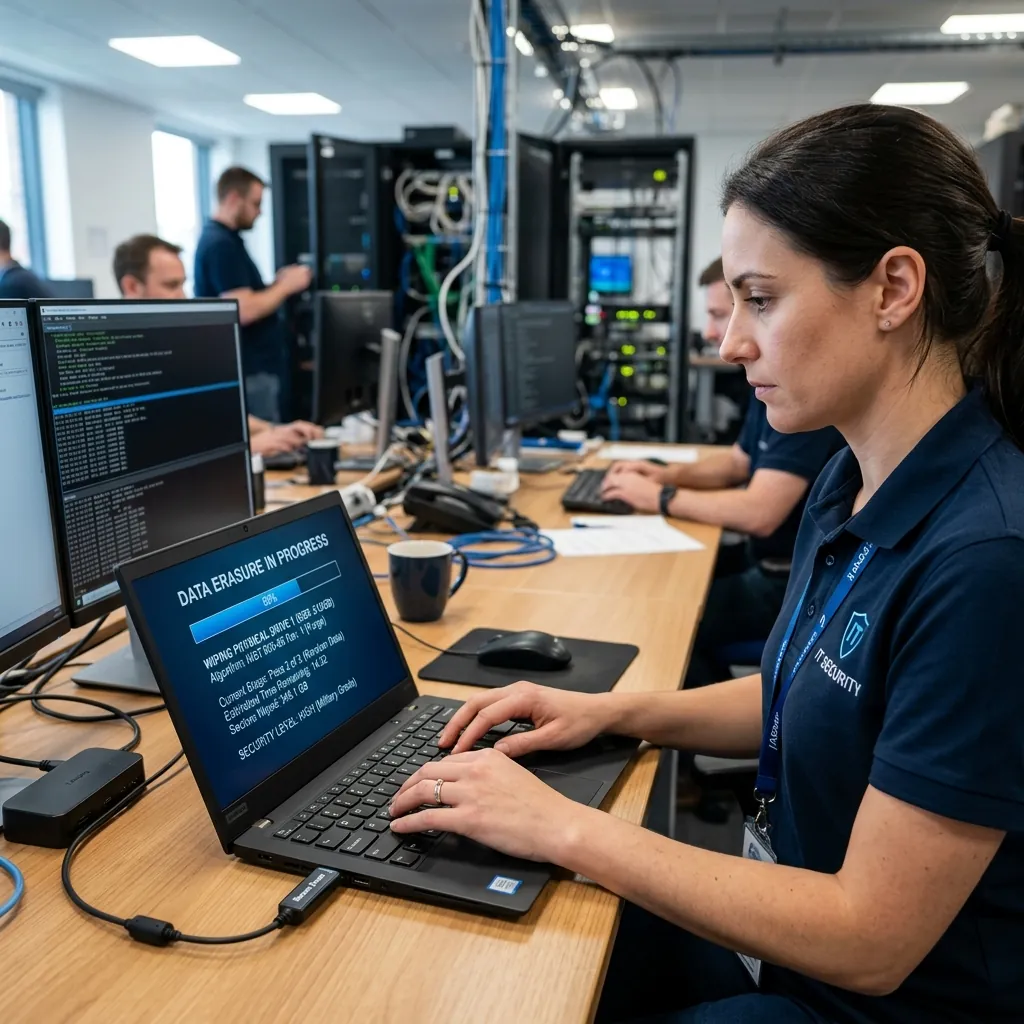
Don't let sensitive client information walk out your door. Follow this expert guide to securely wiping business laptops before recycling or donation.
When it's time to upgrade your company's workstations, those old laptops hold more than just outdated software—they are goldmines of sensitive business data. From cached passwords and client financial records to proprietary code and employee PII, a simple "Delete" or "format" isn't enough to protect your business.
As data security specialists, eSmith IT Consulting has seen firsthand the devastation caused when refurbished hardware leaks company secrets. In this guide, we'll walk you through the exact protocols our experts use to safely wipe business data before recycling old laptops.
Why a Standard Formatting Isn't Enough
Many business owners believe that dragging files to the Recycle Bin or performing a standard Windows factory reset securely deletes their data. Unfortunately, this is a dangerous misconception.
Standard deletion only removes the pointers to the files on the hard drive, making the space available to be written over. Until new data overwrites those exact sectors, your original files remain entirely intact and can be easily recovered with free, off-the-shelf software tools. To truly destroy data, you must cryptographically wipe or physically overwrite the drive.
Step-by-Step Data Destruction Workflow
Step 1: Backup and Certify
Before you initiate any destructive processes:
- Verify that the employee's data has been successfully migrated to their new device.
- Ensure any localized files (Desktop, Documents, Downloads) have been synced to your company's secured cloud storage (e.g., OneDrive or SharePoint).
- Expert Tip: Perform a final audit. Once the drive is cryptographically wiped, recovery is impossible.
Step 2: Unlink the Device from Your IT Ecosystem
Don't let rogue devices linger in your management portals.
- Disconnect the laptop from your Microsoft 365 or Google Workspace environment.
- Remove the machine from Azure Active Directory (Entra ID) and any internal domain controllers.
- Revoke all associated VPN certificates and endpoint security licenses.
Step 3: Execute a Cryptographic Wipe
The most secure method of software-based data destruction is the execution of a Department of Defense (DoD) standard multi-pass wipe or a cryptographic key erasure.
If the laptop utilizes a modern Solid State Drive (SSD), you should use the manufacturer's secure erase utility. SSDs use wear-leveling algorithms that make traditional overwriting highly ineffective.
- Boot into the laptop's BIOS/UEFI settings.
- Locate the "Secure Erase" or "Wipe Drive" protocol.
- Execute the function, which will cryptographically erase the encryption key protecting the SSD, rendering all existing data instantly unreadable.
If you are dealing with legacy magnetic hard drives (HDDs), utilize tools like DBAN (Darik's Boot and Nuke) to perform at least a 3-pass overwrite of randomized data across every physical sector.
Step 4: Physical Destruction (When Necessary)
If a laptop drive has structurally failed and cannot boot into a wiping tool, software erasure is impossible. In these scenarios, the only secure path forward is physical destruction.
- Degaussing: For magnetic drives, this powerful magnetic field permanently destroys the platter's magnetic domains.
- Shredding and Crushing: For SSDs, industrial physical shredding is required to ensure the flash memory chips are completely pulverized.
Partner with Data Security Experts
Navigating the lifecycle of business hardware requires an uncompromising commitment to data security. A single missed hard drive can result in devastating compliance fines, loss of client trust, and intellectual property theft.
At eSmith IT, we integrate secure hardware decommissioning into our standard operating procedures. Whether you need an entire fleet of agency laptops upgraded or require certified physical destruction of old servers, our team ensures your data never falls into the wrong hands.
If you are unsure how to tackle your stockpile of aging hardware, let the professionals take the wheel. Contact us today for secure, compliance-ready IT support.

About the Author
Kevin Smith
With over 25 years of verifiable IT experience across the Carolinas, Kevin Smith is an industry-recognized expert in Microsoft Cloud deployment, disaster recovery, and HIPAA compliance. As the President of eSmith IT Consulting, establishing secure enterprise infrastructure isn't just theory—it's his daily practice.